
Has your Android phone become frustratingly slow? Do apps take forever to open, games lag unexpectedly, or does your phone freeze while switching between tasks? You’re not alone. Over time, even high-end Android smartphones can start to feel sluggish as storage fills up, background apps consume memory, and cached files accumulate.
The good news is that you don’t need to perform a factory reset to make your phone faster. In many cases, a few simple maintenance steps can significantly improve performance while keeping all your apps, photos, and personal data safe.
In this guide, you’ll learn how to speed up a slow Android phone without resetting it using practical methods that work for most Android devices, including Samsung, Xiaomi, OnePlus, Motorola, Realme, Vivo, Oppo, Google Pixel, and others.
Whether you’re using a budget phone that’s slowing down or a flagship device that isn’t performing as it used to, these proven tips can help restore speed and improve your overall experience.
Before fixing the problem, it’s important to understand what causes an Android phone to slow down. Contrary to popular belief, it isn’t always the phone’s age. In many cases, everyday usage habits gradually reduce performance.
Some of the most common reasons include:
The good news is that most of these issues can be fixed in just a few minutes without deleting your important files.
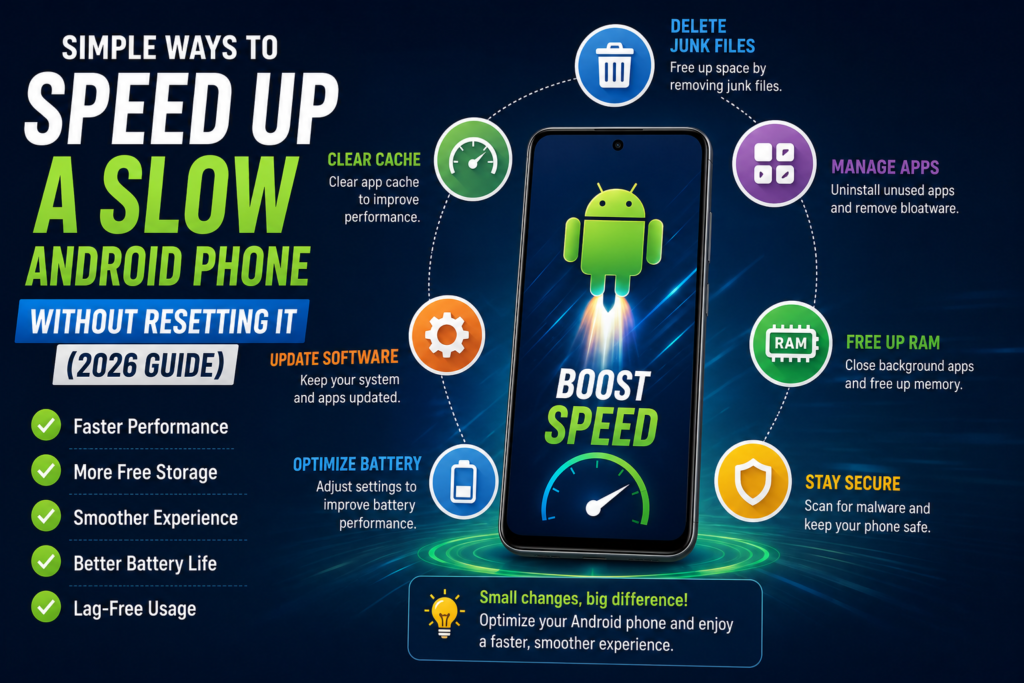
One of the biggest reasons an Android phone slows down is insufficient free storage. When internal storage is nearly full, the operating system has less space to manage temporary files and app data efficiently, which can lead to slower performance.
For smooth performance, try to keep at least 15–20% of your internal storage free. For example:
Keeping enough free storage allows Android to run more smoothly and can noticeably improve your phone’s speed.
Many users install apps, use them once or twice, and forget about them. Even if you rarely open these apps, some continue running background processes, syncing data, and consuming storage.
Removing unused apps is one of the easiest ways to improve performance.
A cleaner app list means fewer background activities, lower memory usage, and faster overall performance.
Apps create cache files to load content more quickly. While cache improves speed initially, excessive cached data can become outdated or corrupted over time, causing apps to behave sluggishly.
Clearing the cache does not delete your personal files or accounts.
Focus on apps that store large amounts of temporary data, such as browsers, social media platforms, and streaming apps.
Many people keep their phones running for weeks without restarting them. A simple restart can clear temporary memory, stop unnecessary background processes, and refresh system resources.
Restarting your phone once every few days can help improve responsiveness, especially if you frequently switch between apps or play games.
It may seem like a small step, but it’s one of the quickest ways to give your Android phone a fresh start without losing any data.
Many users ignore software updates because they assume updates only add new features. In reality, Android updates often include important performance improvements, security patches, bug fixes, and battery optimizations that can make your phone feel faster and more stable.
If your device is running an outdated version of Android, updating it may solve lag, app crashes, and slow response times.
Many apps continue running in the background even after you’ve closed them. These apps consume RAM, battery, internet data, and processor resources, making your Android phone slower over time.
Reducing unnecessary background activity can noticeably improve your phone’s speed.
You can also disable background activity for apps you rarely use.
Restricting these apps can free up valuable system resources.
Android animations make the interface look smooth, but they also require processing power. Reducing or disabling animations can make your phone feel much faster, especially on budget and older devices.
Although the hardware doesn’t become more powerful, shorter animations make the system appear more responsive.
First, enable Developer Options.
Now reduce animation scales:
Some advanced users disable animations completely, but 0.5x usually provides the best balance between speed and visual appeal.
Many popular apps consume significant RAM and storage. If your phone has limited hardware, switching to lightweight versions can improve performance without sacrificing essential features.
| Regular App | Lite Alternative |
|---|---|
| Facebook Lite | |
| Messenger | Messenger Lite (where available) |
| Google Maps | Google Maps Go |
| YouTube | YouTube Go (where supported) |
| Gmail | Gmail Go |
Lite apps typically:
If your phone has 3GB or 4GB of RAM, Lite apps can make a noticeable difference in overall performance and responsiveness.
RAM (Random Access Memory) allows your phone to run multiple apps simultaneously. When RAM becomes overloaded, Android may start closing apps or slowing down to manage resources.
Freeing up RAM helps your phone multitask more efficiently.
Modern Android devices manage RAM automatically, so avoid installing “RAM Booster” apps, as they often do more harm than good.
Live wallpapers and excessive home screen widgets continuously use CPU, GPU, and battery resources.
While they may look attractive, they can reduce performance, especially on older Android phones.
A cleaner home screen reduces background activity and helps your device feel more responsive.
If your Android phone suddenly becomes slow, displays unexpected ads, or drains battery quickly, malicious software could be the cause.
Installing apps from unknown websites increases the risk of malware.
Keeping your device secure also helps maintain smooth performance.
A degraded battery can sometimes affect your phone’s performance. Some manufacturers automatically reduce processor speed when battery health declines to prevent unexpected shutdowns.
If your phone is several years old and the battery is significantly worn out, replacing it through an authorized service center can improve both battery life and overall performance.
Keep at least 15–20% storage free
✔ Remove unused apps regularly
✔ Clear app cache every few weeks
✔ Restart your phone every few days
✔ Install the latest Android updates
✔ Restrict unnecessary background apps
✔ Reduce animation speed to 0.5x
✔ Use Lite apps on low-end devices
✔ Keep your home screen clean
✔ Download apps only from trusted sources
Auto-sync is useful because it keeps your emails, contacts, calendars, and app data updated automatically. However, syncing too many accounts at the same time can consume RAM, CPU resources, battery, and internet bandwidth, especially on older Android devices.
If your phone feels slow, consider disabling sync for accounts or apps you rarely use.
For example, if you don’t use Google Fit or Google Calendar, you can stop syncing them without affecting other services like Gmail.
Many users fill their home screen with widgets, shortcuts, and animated wallpapers. While these features look attractive, they constantly consume system resources.
A cleaner home screen can improve responsiveness and reduce battery consumption.
A minimalist home screen often feels much smoother, especially on entry-level smartphones.
One common mistake Android users make is installing multiple “Phone Booster,” “RAM Cleaner,” or “Speed Booster” apps.
Most modern Android phones already include intelligent memory management. Third-party cleaner apps often run continuously in the background, using the very resources they claim to save.
Instead, rely on Android’s built-in optimization tools available under Device Care, Battery, or Storage, depending on your phone brand.
Many performance issues are caused by everyday habits. Avoiding these common mistakes can help keep your phone running smoothly.
Changing these habits can significantly improve your phone’s long-term performance.
Many myths about Android optimization continue to circulate online. Here’s the truth.
| Myth | Reality |
|---|---|
| Clearing RAM every hour makes your phone faster. | Android automatically manages RAM efficiently. |
| Factory Reset is the only solution. | Most slowdowns can be fixed without resetting the device. |
| Antivirus apps always make Android faster. | They improve security but don’t necessarily boost speed. |
| Closing every app constantly saves battery. | Android intelligently manages background apps on its own. |
| More RAM Booster apps mean better performance. | Multiple RAM booster apps often slow the phone instead. |
Understanding these myths helps you focus on solutions that actually improve performance instead of relying on outdated or misleading advice.
Before considering a factory reset, go through this checklist:
✅ Keep 15–20% storage free
✅ Uninstall unused apps
✅ Clear app cache regularly
✅ Update Android software
✅ Restart your phone weekly
✅ Restrict unnecessary background apps
✅ Reduce animation speed
✅ Use Lite apps on low-end devices
✅ Avoid fake cleaning apps
✅ Download apps only from trusted sources
If you’ve completed these steps, your Android phone should perform noticeably better without losing any personal data.
Yes. In most cases, clearing cache, freeing up storage, uninstalling unused apps, updating Android, and reducing background activity can significantly improve performance without resetting your device.
A slow phone isn’t always caused by low storage. Background apps, outdated software, excessive animations, malware, or an aging battery can also reduce performance.
Yes. Clearing cache only removes temporary files. It doesn’t delete your photos, messages, or personal data, though some apps may take a little longer to load the first time afterward.
Generally, no. Android already manages memory efficiently. Many RAM booster apps continue running in the background and may actually consume additional resources.
Restarting your phone once every few days—or at least once a week—helps clear temporary memory, stop stuck background processes, and keep the system running smoothly.
If your Android phone has become slow, you don’t need to rush into performing a factory reset. Most performance issues can be resolved with simple maintenance steps such as freeing up storage, uninstalling unused apps, clearing cache, limiting background activity, and keeping your software updated.
The best part is that these methods preserve your apps, photos, contacts, and other important data while improving your phone’s responsiveness.
By following the tips in this guide, you can extend your phone’s lifespan, enjoy smoother multitasking, and get better overall performance without spending money on a new device.
Whether you’re using a Samsung Galaxy, Xiaomi, Realme, Vivo, Oppo, Motorola, OnePlus, Google Pixel, or another Android phone, these optimization techniques are practical, beginner-friendly, and effective.
Pro Tip: Make it a habit to clean up your phone once every month. A few minutes of regular maintenance can keep your Android device running fast for years.