
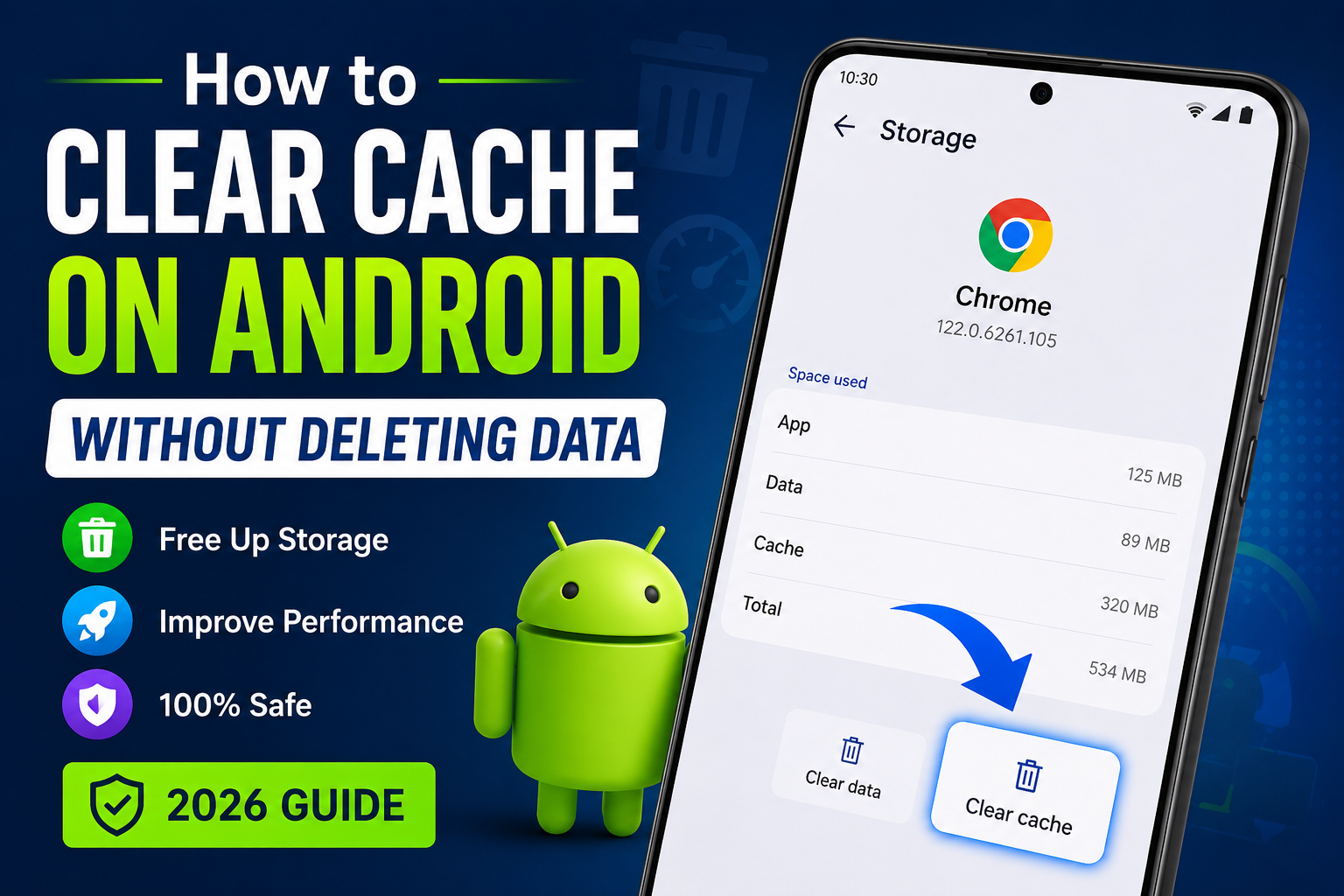
How to Clear Cache on Android Without Deleting Data (2026): A Complete Beginner’s Guide

How to Clear Cache on Android Without Deleting Data (2026)

Introduction

Have you ever picked up your Android phone and wondered, “Why has it suddenly become so slow?” Maybe apps take longer to open, videos keep buffering, or you receive that frustrating Storage Almost Full” notification even though you haven’t installed anything new.

If this sounds familiar, you’re not alone.

Many Android users assume that the only solution is deleting photos, uninstalling apps, or even resetting the phone. But in reality, one of the easiest ways to improve your phone’s performance is by clearing its cache.

The best part? You can clear cache on Android without deleting your personal data.

Your family photos, WhatsApp chats, contacts, downloaded files, and important documents remain completely safe when you clear only the cache.

Think of cache like sticky notes that your apps leave behind to remember certain information. At first, these notes help apps load faster. But after months of use, thousands of unnecessary temporary files can pile up and start occupying valuable storage space.

In this guide, you’ll learn exactly how to clear cache on Android without deleting data, understand the difference between cache and app data, and discover the safest methods for Samsung, Xiaomi, OnePlus, Realme, Motorola, Google Pixel, and other Android devices.

Whether you’re a beginner or someone who simply wants a faster phone, this step-by-step guide will help you keep your Android device running smoothly throughout 2026.


What Is Cache on Android?

Before clearing cache, it’s important to understand what it actually is.

Whenever you open an app like Instagram, YouTube, Chrome, or Facebook, your phone stores small temporary files. These files are known as cache.

Instead of downloading the same images, icons, or website elements every single time, Android saves them locally so the app can load much faster the next time you open it.

Imagine visiting your favorite coffee shop every morning. On your first visit, the staff has to ask for your order. After a few days, they already know what you usually drink, making the process much quicker.

Cache works in a similar way.

It remembers certain temporary information so apps don’t have to start from scratch every time.

For example:

  • Chrome stores website images you’ve already viewed.
  • YouTube keeps video thumbnails.
  • Instagram saves profile pictures and recently viewed content.
  • Google Maps stores parts of previously viewed maps.
  • Spotify temporarily saves album artwork.

This makes your overall experience smoother and faster.

However, there’s one problem.

These temporary files keep increasing over time.

After weeks or months of continuous use, cache files can occupy hundreds of megabytes—or even several gigabytes—of storage without you realizing it.

That’s when clearing cache becomes useful.


Why Does Android Create Cache Files?

Many people think cache is unnecessary, but that’s not true.

Without cache, every app would have to download everything from the internet every single time you opened it.

That would mean:

  • Slower loading times
  • Higher mobile data usage
  • Increased battery consumption
  • Poor user experience

Cache exists to make your phone feel fast and responsive.

In other words, cache is actually your phone’s helper.

The problem only starts when too much cache accumulates over time.

Think of it like your study table.

Keeping a few notebooks on your desk helps you work efficiently. But if you never clean the desk, eventually it becomes so cluttered that finding anything becomes difficult.

The same thing happens with Android cache.

A moderate amount is beneficial.

An excessive amount can slow things down.


Does Clearing Cache Delete Your Data?

This is easily the biggest concern people have.

The simple answer is:

No. Clearing cache does not delete your personal data.

When you tap Clear Cache, Android removes only temporary files created by apps.

Your important information remains untouched.

That includes:

  • Photos
  • Videos
  • Contacts
  • WhatsApp chats
  • Downloaded files
  • Documents
  • Saved passwords (in most apps)
  • App settings (usually)

This is why clearing cache is considered one of the safest maintenance tasks for any Android phone.

However, many users accidentally tap Clear Data instead of Clear Cache.

That’s where problems begin.


Clear Cache vs Clear Data

FeatureClear CacheClear Data
Removes temporary files✅ Yes✅ Yes
Deletes app settings❌ No✅ Yes
Removes login information❌ Usually No✅ Yes
Deletes downloaded offline content❌ NoSometimes
Safe for regular maintenance✅ YesOnly when necessary

If you’re simply trying to free up storage or fix a slow app, always choose Clear Cache.

Reserve Clear Data only for situations where an app is severely malfunctioning and other troubleshooting methods haven’t worked.


Signs That It’s Time to Clear Cache

Not sure whether your phone actually needs it?

Here are some common signs.

Apps Take Longer to Open

If Instagram, Facebook, Chrome, or YouTube suddenly feel slower than usual, accumulated cache could be one reason.

Storage Keeps Filling Up

Have you ever wondered where your storage disappeared even after deleting unnecessary photos?

Large cache files are often the hidden culprit.

Apps Keep Crashing

Sometimes apps crash because outdated cache files conflict with newer app updates.

Clearing cache often fixes the issue within seconds.

Websites Display Old Information

If Chrome keeps showing outdated pages or images don’t load correctly, clearing the browser cache usually resolves the problem.

Phone Feels Sluggish

A phone that takes longer to respond, especially while switching between apps, may benefit from clearing unnecessary cache files.

While cache isn’t the only reason behind slow performance, it’s one of the easiest things to check before trying more advanced solutions.


Benefits of Clearing Cache on Android

Many users are surprised by how much difference a simple cache cleanup can make.

Some of the biggest benefits include:

  • Frees up valuable storage space.
  • Helps apps run more smoothly.
  • Resolves minor app glitches and crashes.
  • Removes outdated temporary files.
  • Improves browsing performance in Chrome.
  • Reduces unnecessary storage usage.
  • Refreshes app content after updates.
  • Keeps your phone organized without deleting personal files.

The best part is that the entire process usually takes less than two minutes.


Before You Start: Is Clearing Cache Safe?

Yes.

For the vast majority of Android users, clearing cache is completely safe.

In fact, many smartphone manufacturers recommend it whenever an app behaves unexpectedly.

The only thing you’ll notice is that some apps may take an extra second or two to load the very first time after the cache has been cleared. That’s perfectly normal because the app is rebuilding fresh temporary files.

After that initial launch, everything usually returns to normal—often with smoother performance than before.


How to Clear Cache on Android Without Deleting Data

Now that you know what cache is and why it builds up, let’s get to the part you came here for.

The good news is that clearing cache takes less than a minute, and you don’t need to install any third-party app to do it.

The exact steps may vary slightly depending on your phone’s brand and Android version, but the overall process is almost the same.

Step 1: Open Settings

Unlock your Android phone and open the Settings app.

You can either tap the Settings icon from the app drawer or swipe down from the top of the screen and tap the gear icon.

Step 2: Go to Apps

Scroll down until you see Apps, Apps & Notifications, or Applications.

The name depends on your phone manufacturer.

Tap it.

Step 3: Select the App

Choose the app that’s taking up the most storage.

If you’re not sure where to start, check apps like:

  • Google Chrome
  • YouTube
  • Instagram
  • Facebook
  • WhatsApp
  • Google Maps
  • Spotify

These apps usually collect a large amount of cache over time.

Step 4: Open Storage & Cache

Inside the app settings, tap Storage & Cache or simply Storage.

Here you’ll usually see two options:

  • Clear Cache
  • Clear Data (or Clear Storage)

Step 5: Tap “Clear Cache”

Tap Clear Cache.

That’s it.

Android immediately removes temporary files while keeping your photos, chats, downloaded files, and account information safe.


How to Clear Chrome Cache on Android

If you browse the web regularly, Google Chrome can accumulate hundreds of megabytes of cached files.

Clearing Chrome’s cache is slightly different from clearing an app’s cache.

Here’s how:

  1. Open Google Chrome.
  2. Tap the three-dot menu in the top-right corner.
  3. Select History.
  4. Tap Clear Browsing Data.
  5. Choose the desired Time Range.
  6. Select Cached Images and Files.
  7. Leave Passwords, Cookies, and Browsing History unchecked if you don’t want to remove them.
  8. Tap Clear Data.

The next time you visit a website, Chrome may take a little longer to load it for the first time. After that, browsing speed returns to normal.


How to Clear Cache on Samsung, Xiaomi, OnePlus, Realme, OPPO, Motorola & Pixel

The process is almost identical across Android brands.

Phone BrandSteps
Samsung GalaxySettings → Apps → Select App → Storage → Clear Cache
Xiaomi / HyperOSSettings → Apps → Manage Apps → Storage → Clear Cache
OnePlusSettings → Apps → App Management → Storage & Cache → Clear Cache
Realme / OPPOSettings → App Management → App List → Storage Usage → Clear Cache
MotorolaSettings → Apps → Storage & Cache → Clear Cache
Google PixelSettings → Apps → See All Apps → Storage & Cache → Clear Cache

Don’t worry if the menu names look slightly different on your phone. The Clear Cache option is available on almost every Android device.


Should You Use Cleaner Apps?

If you’ve searched for ways to speed up your Android phone, you’ve probably seen apps promising to boost performance with a single tap.

While that sounds convenient, you should be careful.

Many phone cleaner apps display excessive ads, consume battery in the background, or ask for permissions they don’t actually need.

Modern Android phones already include everything you need to manage storage safely.

In most cases, using your phone’s built-in storage settings is the better option.

If you still prefer a cleaning app, choose one from a trusted developer and download it only from the Google Play Store.


How Often Should You Clear Cache?

One question many users ask is:

“Should I clear cache every day?”

The answer is no.

Cache exists for a reason.

Deleting it too frequently can actually make apps load more slowly because they’ll have to rebuild temporary files from scratch.

A better schedule is:

  • Light users: Every 1–2 months.
  • Average users: Once every 3–4 weeks.
  • Heavy users (gaming, social media, streaming): Every 2–3 weeks.

If you notice an app behaving strangely, you can clear its cache immediately instead of waiting.


Common Mistakes to Avoid

Clearing cache is simple, but a few mistakes can create unnecessary problems.

1. Confusing “Clear Cache” with “Clear Data”

This is by far the most common mistake.

Always double-check before tapping.

Choosing Clear Data may sign you out of the app and remove locally stored settings.

2. Installing Random Cleaner Apps

Not every app that promises to boost RAM or clean junk files is trustworthy.

Some consume more resources than they save.

3. Clearing Everything Too Frequently

You don’t need to clear cache every day.

Let Android manage temporary files unless you’re facing storage or performance issues.

4. Ignoring App Updates

Sometimes an app becomes slow because it’s outdated—not because of its cache.

Before troubleshooting further, make sure the app is updated from the Google Play Store.


Pro Tips to Keep Your Android Phone Fast

Besides clearing cache, here are a few habits that can help your phone perform better over time:

  • Restart your phone once every few days.
  • Uninstall apps you no longer use.
  • Keep Android and your apps updated.
  • Store photos and videos in cloud storage if possible.
  • Leave at least 10–15% of your storage free for smoother performance.
  • Avoid downloading apps from unknown websites.

These simple practices can make a noticeable difference in your phone’s speed and stability.


Frequently Asked Questions (FAQs)

Does clearing cache delete WhatsApp messages?

No. Clearing cache only removes temporary files. Your chats, photos, and videos remain safe.

Will I need to log in again after clearing cache?

Usually no. Clearing cache doesn’t remove your account information. However, clearing app data might.

Why does cache come back after I delete it?

That’s completely normal. Apps automatically create new cache files as you continue using them to improve loading speed.

Can clearing cache fix app crashes?

Yes, in many cases. If an app starts crashing after an update or behaves unexpectedly, clearing its cache is often the first troubleshooting step.

Does clearing cache improve battery life?

It isn’t a guaranteed battery fix, but if an app is constantly misbehaving in the background, clearing its cache may help reduce unnecessary activity.


Final Thoughts

If your Android phone has started feeling slower, don’t rush to delete photos, uninstall apps, or perform a factory reset.

In many situations, simply learning how to clear cache on Android without deleting data can solve common performance problems in just a few minutes.

Cache is designed to make apps faster, but like anything else, too much of it can become counterproductive. By clearing temporary files from time to time, you can free up storage, reduce minor app issues, and keep your device running smoothly—all without losing your personal data.

The key is to remember the difference between Clear Cache and Clear Data. As long as you choose the correct option, your photos, contacts, messages, and important files will remain safe.

Make it a habit to check your storage every few weeks, especially if you use apps like Chrome, YouTube, Instagram, or Facebook regularly. A quick cache cleanup can go a long way toward keeping your Android phone fast and responsive throughout 2026.

Previous Post
Next Post

Leave a Reply

Your email address will not be published. Required fields are marked *