
10 Proven Ways to Increase Android Phone Speed Without Factory Reset
Yes, you can make your Android phone significantly faster without performing a factory reset. In most cases, clearing unnecessary storage, removing unused apps, limiting background processes, updating software, and optimizing system settings can noticeably improve your phone’s performance. These methods are safe, require only a few minutes, and do not delete your personal data.
Quick Overview Table
| Method | Difficulty | Time Required | Data Loss |
|---|---|---|---|
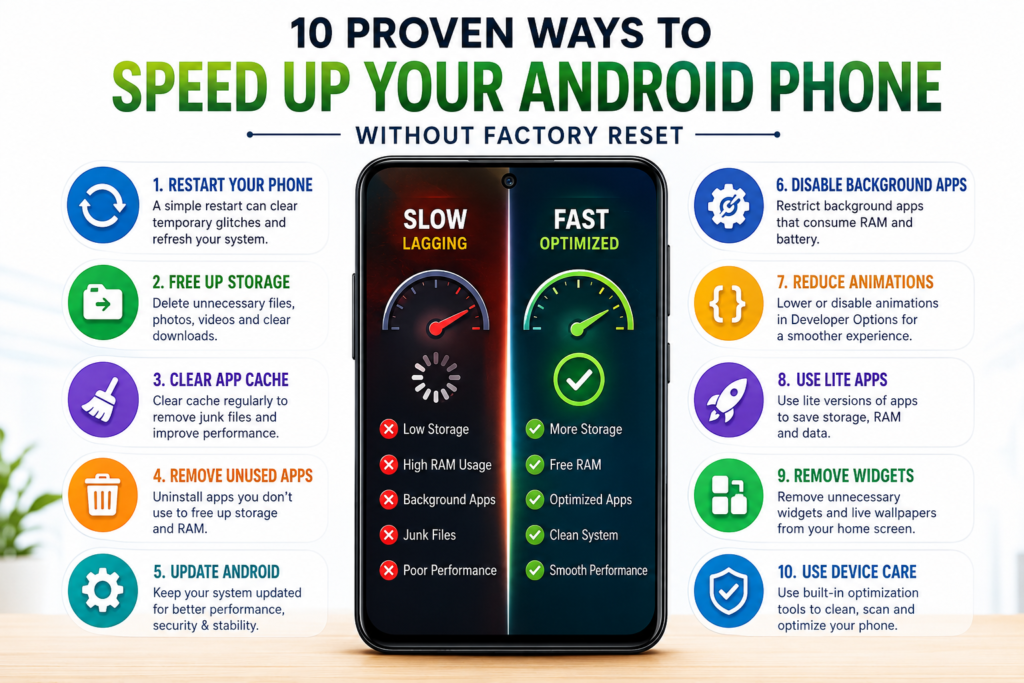
| Restart Your Phone | Easy | 1 Minute | No |
| Free Up Storage | Easy | 5 Minutes | No |
| Clear App Cache | Easy | 3 Minutes | No |
| Remove Unused Apps | Easy | 5 Minutes | No |
| Update Android | Easy | 10 Minutes | No |
| Disable Background Apps | Medium | 5 Minutes | No |
| Reduce Animations | Easy | 2 Minutes | No |
| Use Lite Apps | Easy | 10 Minutes | No |
| Disable Widgets | Easy | 2 Minutes | No |
| Use Device Care Features | Easy | 3 Minutes | No |
1. Restart Your Android Phone Regularly
It may sound simple, but restarting your phone is one of the quickest ways to improve its speed.
Many users keep their phones running for weeks without restarting them. During this time, temporary processes continue running in the background, consuming RAM and processor resources.
When you restart your phone:
- Temporary memory is cleared.
- Background processes are refreshed.
- Minor software glitches disappear.
- RAM becomes available for active apps.
How to Restart Your Phone
- Press and hold the Power button.
- Tap Restart.
- Wait for the phone to reboot completely.
Restarting your device once every few days can help maintain smoother performance.
2. Free Up Internal Storage
One of the biggest reasons behind slow Android performance is insufficient free storage.
Android requires free space for:
- System updates
- Temporary files
- App data
- Cache storage
- Background processing
If your storage is more than 85–90% full, your phone may become noticeably slower.
What You Can Delete Safely
- Duplicate photos
- Old screenshots
- Large videos
- Downloaded files
- Unused documents
- Offline media
- App cache
Aim to keep at least 20–25% of your storage free for optimal performance.
also read: good camera phone under ₹20,000 in India
3. Clear App Cache Instead of Clearing App Data
Many users confuse Cache with App Data, but they are different.
- Cache stores temporary files that help apps load faster.
- App Data contains your login information, settings, and saved preferences.
Clearing the cache removes unnecessary temporary files without deleting your personal information.
Steps
- Open Settings.
- Go to Apps.
- Select the app.
- Tap Storage.
- Choose Clear Cache.
Do this for apps like:
- Chrome
- YouTube
- WhatsApp (cache only)
Avoid clearing cache every day. Once every few weeks is usually enough.
4. Remove Apps You No Longer Use
Unused apps don’t just occupy storage—they can also:
- Run in the background
- Send notifications
- Sync data
- Consume battery
- Use RAM
Review your installed apps every few months and uninstall the ones you haven’t used recently.
To uninstall:
- Open Settings > Apps.
- Select the app.
- Tap Uninstall.
If an app cannot be removed because it came pre-installed, consider disabling it instead.
Also Read: top 5G smartphones under ₹15,000
5. Keep Your Android Phone and Apps Updated
Many users ignore software updates because they think updates only add new features. In reality, updates often include performance improvements, bug fixes, battery optimizations, and security patches that can make your phone feel smoother.
If your phone has been running the same Android version for months, updating it could improve stability and reduce lag.
How to Check for Updates
- Open Settings.
- Go to System or Software Update.
- Tap Check for Updates.
- Download and install the latest update if available.
Don’t forget to update your apps through the Google Play Store as well. Developers regularly release updates that improve speed and fix performance issues.
Tip: Install updates only after backing up important data and keep at least 30% battery before starting the proce
Read more : How to Update Google Play Store
6. Limit Background Apps
One of the biggest reasons for slow Android performance is too many apps running in the background.
Even when you are not actively using them, apps like Facebook, Instagram, Messenger, shopping apps, and cloud storage services continue syncing data, sending notifications, and consuming RAM.
How to Reduce Background Activity
- Close apps you no longer need.
- Disable background activity for rarely used apps.
- Turn off auto-sync for unnecessary accounts.
- Restrict battery usage for power-hungry apps.
On Android
Go to:
Settings → Apps → Select App → Battery → Restricted (available on many Android devices).
Doing this for social media and shopping apps can noticeably improve overall performance.
7. Reduce or Turn Off Animations
Android animations make the interface look smooth, but they also consume processing power—especially on budget and older smartphones.
Reducing animation speed can make your phone feel much faster.
How to Enable Developer Options
- Open Settings.
- Go to About Phone.
- Tap Build Number seven times.
- Return to Developer Options.
Now change:
- Window Animation Scale → 0.5x
- Transition Animation Scale → 0.5x
- Animator Duration Scale → 0.5x
If you’re comfortable with a faster interface, you can even turn them off completely
Also read: how-to-download-aadhaar-card-from-uidai
8. Use Lite Versions of Apps
Heavy apps consume more RAM, storage, and battery. If your phone has 4GB RAM or less, switching to lighter alternatives can make a noticeable difference in overall performance.
Examples
| Heavy App | Lite Alternative |
|---|---|
| Facebook Lite | |
| Messenger | Messenger Lite (where available) |
| Google Maps | Maps Go |
| Gmail | Gmail Go (supported devices) |
You can also use browser versions of some services instead of installing full apps. This reduces background activity, saves storage, and helps your phone stay responsive.
9. Remove Unnecessary Widgets and Live Wallpapers
Widgets constantly refresh data in the background. Weather widgets, news widgets, stock trackers, and live wallpapers may look attractive, but they can consume memory, battery, and processing power.
If your home screen is filled with widgets, try keeping only the ones you actually use.
Recommended Home Screen Setup
- Simple wallpaper
- Clock widget (optional)
- Search bar
- Frequently used apps
A cleaner home screen often results in smoother navigation, particularly on entry-level Android devices.
10. Use Built-in Device Care or Optimization Features
Most smartphone brands now include built-in optimization tools that help improve performance without installing third-party cleaner apps.
Popular Built-in Optimization Apps
- Samsung – Device Care
- Xiaomi – Security App
- OnePlus – Phone Manager
- OPPO – Phone Manager
- vivo – iManager
- realme – Phone Manager
These Tools Can Help You:
- Clean temporary files
- Optimize memory usage
- Detect battery-draining apps
- Remove junk files
- Improve overall system performance
Since these tools are provided by your phone manufacturer, they are generally much safer and more reliable than random third-party "phone booster" apps.
Comparison Table: Which Method Gives the Best Results?
| Method | Expected Speed Improvement | Recommended For |
|---|---|---|
| Restart Phone | ⭐⭐⭐ | Everyone |
| Free Up Storage | ⭐⭐⭐⭐⭐ | Phones with low storage |
| Clear Cache | ⭐⭐⭐⭐ | Daily app users |
| Remove Unused Apps | ⭐⭐⭐⭐ | Phones with many installed apps |
| Update Software | ⭐⭐⭐⭐ | Older Android versions |
| Restrict Background Apps | ⭐⭐⭐⭐⭐ | Phones with limited RAM |
| Reduce Animations | ⭐⭐⭐⭐ | Budget smartphones |
| Use Lite Apps | ⭐⭐⭐⭐ | 3GB–4GB RAM devices |
| Remove Widgets | ⭐⭐⭐ | Older phones |
| Built-in Device Care | ⭐⭐⭐⭐ | All Android devices |
Expert Tips
Want even better performance? Follow these simple habits:
- Restart your phone once every 3–4 days.
- Keep at least 20–25% storage free.
- Install apps only from trusted sources like the Google Play Store.
- Remove duplicate photos and videos regularly.
- Keep only the apps you actually use.
- Avoid installing unnecessary RAM booster or phone cleaner apps.
- Update your apps regularly.
- Back up important data before major software updates.
These small habits can help your Android phone stay smooth and responsive for years.
Common Mistakes to Avoid
Many users unintentionally slow down their phones by following outdated advice.
- Clearing app data instead of app cache.
- Filling storage almost to 100%.
- Installing multiple cleaning apps.
- Ignoring Android software updates.
- Keeping dozens of apps running in the background.
- Using live wallpapers on low-end devices.
- Downloading apps from unknown sources.
- Never restarting the phone.
Myths vs Facts
| Myth | Reality |
|---|---|
| Factory reset is the only way to speed up a phone. | Most performance issues can be fixed without resetting the device. |
| RAM booster apps make phones much faster. | Android already manages RAM efficiently. Many booster apps consume additional resources. |
| Closing every app constantly improves speed. | Android is designed to manage apps intelligently. Closing everything repeatedly isn't necessary. |
| More free RAM always means a faster phone. | Storage, software optimization, and processor efficiency also play major roles. |
Pros & Cons of These Methods
Pros
- No data loss.
- Free to implement.
- Safe for most Android devices.
- Improves day-to-day performance.
- Can also improve battery life.
- Reduces app lag and slowdowns.
Cons
- Results vary depending on the phone's hardware.
- Very old devices may still feel slow due to limited processing power.
- Some advanced settings require extra care when changing them.
Also Read:
Also Read:
Frequently Asked Questions (FAQs)
1. Can I speed up my Android phone without a factory reset?
Yes. In most cases, clearing cache, freeing up storage, removing unused apps, limiting background activity, and keeping your phone updated can significantly improve performance without deleting your personal data.
2. Does clearing cache make an Android phone faster?
Yes. Clearing app cache removes temporary files that may slow down certain apps. It won’t delete your personal information, and it’s a safe way to improve performance.
3. How much free storage should I keep on my Android phone?
For the best performance, try to keep at least 20–25% of your internal storage free. This gives Android enough space to manage temporary files and system processes efficiently.
4. Are RAM booster apps really useful?
Not usually. Modern Android versions already manage RAM effectively. Many third-party RAM booster apps can consume additional resources instead of improving performance.
5. Will updating Android make my phone faster?
Software updates often include performance improvements, bug fixes, and security patches. While updates may not dramatically speed up every device, they can improve stability and responsiveness.
6. How often should I restart my Android phone?
Restarting your phone once every 3–4 days helps refresh system resources, clear temporary memory, and improve overall performance.
7. Is it safe to use phone cleaner apps?
It’s better to use the built-in optimization tools provided by your phone manufacturer. Avoid installing multiple third-party cleaner apps, as they can consume resources and display excessive ads.