
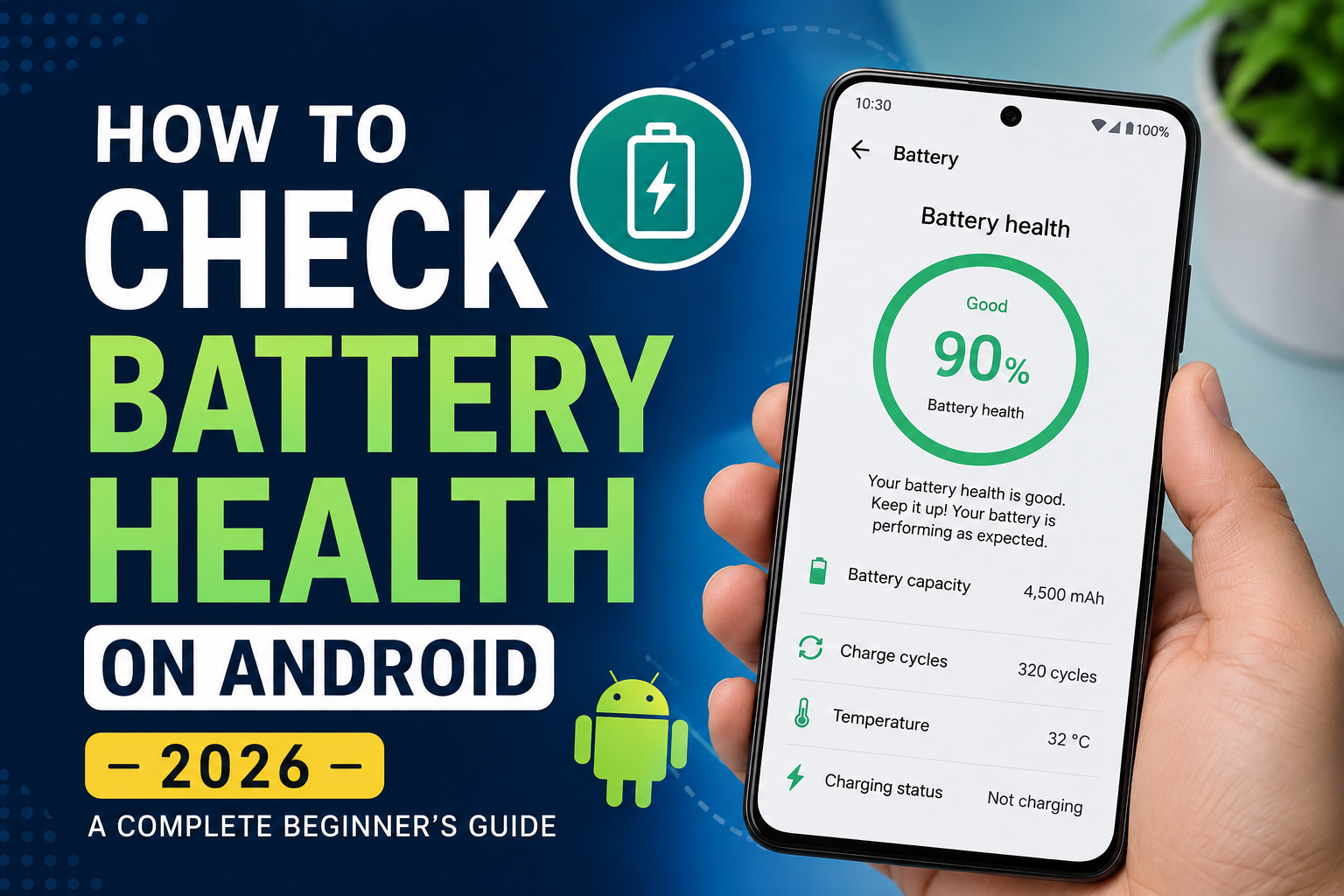
How to Check Battery Health on Android (2026): A Complete Beginner’s Guide
A healthy battery is essential for a smooth smartphone experience. Whether you use your Android phone for work, online classes, gaming, photography, or social media, your battery plays a crucial role in daily performance. Over time, every lithium-ion battery naturally degrades, which can lead to shorter battery life, slower performance, and unexpected shutdowns.
The good news is that there are several ways to check your Android phone’s battery health. Some brands provide built-in battery diagnostics, while others require trusted apps or device diagnostics. In this guide, we’ll explain what battery health means, why it matters, and the different methods you can use to check it.
What Is Battery Health?
Battery health refers to your battery’s current condition compared to when it was new. A brand-new battery operates at close to its original capacity. As the battery ages through regular charging and usage, its capacity gradually decreases.
For example, a battery that originally stored 5,000mAh may only be able to hold around 4,300–4,500mAh after extended use. This reduction is a normal part of a battery’s life cycle.
Monitoring battery health helps you understand whether poor battery backup is caused by normal aging or another issue.
Why Is Battery Health Important?
Knowing your battery health can help you:
- Identify battery-related problems early.
- Understand why battery backup has decreased.
- Improve your charging habits.
- Decide if a battery replacement is necessary.
- Maintain better overall phone performance.
Checking battery health every few months is a good practice, especially if your phone is more than a year old.
Method 1: Check Battery Health Using Built-in Features
Some Android manufacturers include battery information within the Settings app.
Samsung
On many Samsung devices, open Settings, go to Device Care, then Diagnostics or Battery, depending on your software version. You may find information about battery condition, charging status, and overall battery performance.
Google Pixel
Some Google Pixel devices provide battery diagnostics through system settings or support features. Available information can vary depending on the Android version.
Not every Android phone displays a battery health percentage, so don’t worry if you can’t find it.
Method 2: Use the Manufacturer’s Diagnostic App
Several smartphone brands provide official diagnostic tools that can check battery condition along with other hardware components.
These tools typically examine:
- Battery charging performance
- Battery temperature
- Overall battery condition
- Charging port status
Using official diagnostic tools is often more reliable than relying on unknown third-party apps.
Method 3: Use a Trusted Battery Monitoring App
If your phone doesn’t include built-in battery diagnostics, you can use a reputable battery monitoring app.
A good battery app may provide information such as:
- Estimated battery health
- Current battery capacity
- Charging speed
- Battery temperature
- Charge cycles
- Power consumption by apps
These apps estimate battery condition using charging data over time, so the results may not be exact but can still be helpful.
Signs That Your Battery Health May Be Poor
Even without a battery health indicator, you can often recognize battery problems through everyday usage.
Common signs include:
- Battery percentage drops quickly.
- Phone switches off unexpectedly.
- Device becomes unusually hot while charging.
- Charging takes much longer than before.
- Battery drains even when the phone is idle.
- Performance slows during heavy tasks.
If you notice several of these symptoms consistently, it may be time to have the battery checked by an authorized service center.
Tips to Improve Battery Health
Healthy charging habits can help slow battery aging.
Follow these practical tips:
- Avoid exposing your phone to extreme heat.
- Use compatible chargers and cables.
- Avoid completely draining the battery regularly.
- Unplug the phone once it is fully charged if possible.
- Reduce unnecessary background activity.
- Keep your phone updated with the latest software.
Small changes in daily usage can help extend battery lifespan over time.
Common Myths About Battery Health
Myth 1: You Must Always Charge to 100%
Modern smartphones are designed to manage charging intelligently. Charging to 100% occasionally is perfectly normal and will not instantly damage your battery.
Myth 2: Closing Every Background App Improves Battery Life
Frequently reopening apps can sometimes consume more battery power than leaving them suspended in the background.
Myth 3: Fast Charging Always Damages the Battery
Fast charging generates more heat, but modern smartphones include built-in safety features to manage charging efficiently when using compatible chargers.
Frequently Asked Questions (FAQs)
Can I Check Battery Health Without Installing an App?
Yes. Some Android phones include battery diagnostics within their settings or official diagnostic tools.
Does Battery Health Decrease Over Time?
Yes. All rechargeable lithium-ion batteries naturally lose capacity after repeated charging cycles.
How Often Should I Check Battery Health?
Checking battery health every few months is generally sufficient unless you notice unusual battery behavior.
When Should I Replace My Battery?
If your battery no longer provides acceptable backup, frequently overheats, or causes unexpected shutdowns, it may be time to consider a replacement through an authorized service center.
Conclusion
Checking your Android phone’s battery health is a simple way to better understand your device’s performance and battery condition. While not every Android phone provides a built-in battery health percentage, there are several reliable ways to monitor battery performance using system features or trusted diagnostic tools.
By adopting good charging habits, avoiding excessive heat, and monitoring battery performance over time, you can help extend your smartphone’s battery lifespan and enjoy a more reliable experience.